
Web Platform Guide
Overview
The EZY GPS web platform provides advanced vehicle monitoring and fleet management tools.
Using the web platform you can:
- Monitor vehicles in real time
- Replay trips and routes
- Generate reports
- Create geofences
- Configure alerts
- Manage multiple vehicles
The platform can be accessed from any computer with an internet connection.
Accessing the Web Platform
- Open your web browser
- Navigate to https://login.ezygps.com.au
- Enter your username
- Enter your password
- Click Login
Once logged in, the system dashboard will load.
Platform Dashboard
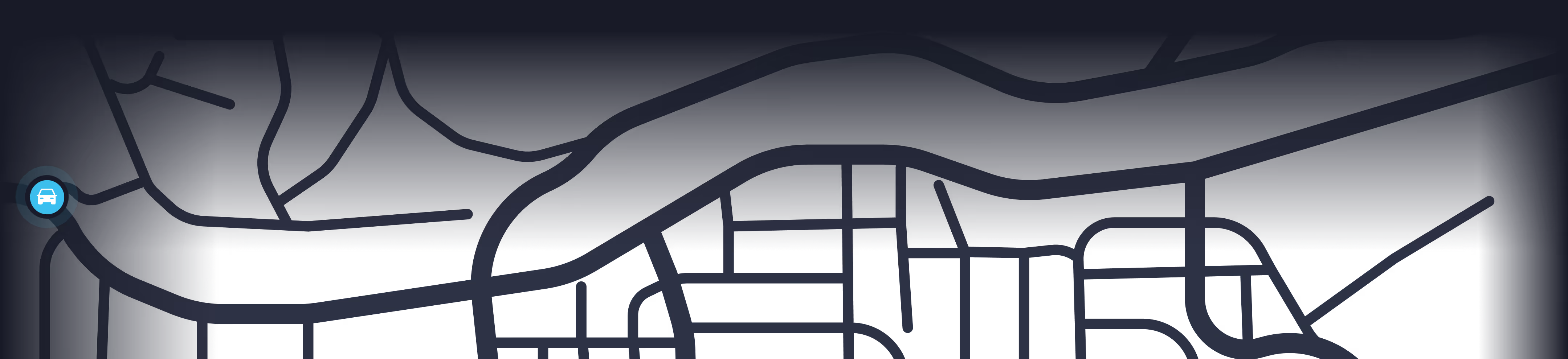
The dashboard displays the real-time location of your vehicles. It typically includes:
- Interactive map
- Vehicle list
- Status indicators
- Navigation menu
Selecting a vehicle from the list will centre the map on that vehicle.
Viewing Vehicle Location
- Log in to the EZY GPS web platform
- Locate the vehicle list on the dashboard
- Select the vehicle you want to monitor
The platform will display: current location, vehicle speed, ignition status, last update time, and address location.
Viewing Trip History
- Log in to the EZY GPS platform
- Select the vehicle you want to review
- Navigate to Reports or Trip History
- Select the date range
- Click Search
Each trip will show: start location, end location, distance travelled, and travel time.
- Log in to the EZY GPS platform
- Select the vehicle you want to review
- Navigate to Reports or Trip History
- Select the date range
- Click Search
Each trip will show: start location, end location, distance travelled, and travel time.
Trip Playback
- Log in to the web platform
- Select the vehicle
- Open Trip History
- Select a trip
- Click Playback
The map will animate the vehicle movement along the route. Playback speed can usually be adjusted.
Creating Geofences
A geofence is a virtual boundary created around a location. The system can send alerts when a vehicle enters or leaves this area.
- Log in to the web platform
- Navigate to Geofence Management
- Click Create Geofence
- Enter a name for the geofence
- Select the location on the map
- Adjust the radius or boundary area
- Click Save
Once created, alerts can be linked to the geofence.
Setting Up Alerts
Common alert types:
- Overspeed alerts
- Geofence entry alerts
- Geofence exit alerts
- Ignition alerts
- Vibration alerts
- Power removal alerts
How to Configure Alerts
- Navigate to Alert Settings
- Select the type of alert
- Choose the vehicle
- Configure the alert conditions
- Save the alert configuration
Alerts can be delivered via app notification or email notification.
Generating Reports
Common reports include: trip reports, mileage reports, ignition reports, and alert reports.
- Navigate to Reports
- Select the report type
- Choose the vehicle
- Select the date range
- Click Generate Report
Reports can usually be exported for record keeping.
Managing Multiple Vehicles
Fleet managers can:
- View all vehicles on a single map
- Search for vehicles
- Organise vehicles into groups
- Monitor fleet activity in real time
Viewing Vehicle Status
| Online | The device is connected and transmitting data |
| Offline | The device is temporarily disconnected |
| Ignition On | The vehicle engine is running |
| Ignition Off | The vehicle ignition is off |
Best Practices
- Assign clear names to vehicles
- Review trip reports regularly
- Create geofences for key locations
- Monitor alerts for unusual activity
Common Platform Issues
- Possible causes: vehicle parked underground, temporary mobile network loss, vehicle battery disconnected.
- Once the device regains signal, it will reconnect automatically.
- Possible causes: vehicle parked indoors, poor satellite signal, temporary network issues.
- Moving the vehicle outdoors usually restores GPS reception.
- Confirm the tracker has been activated and you are logged into the correct account.
Still Need Help or Have Another Question?